
How to restore data in ONTAP

https://kb.netapp.com/on-prem/ontap/Ontap_OS/OS-KBs/How_to_restore_data_in_ONTAP 

Applies to

ONTAP 9

Description

  • There are many options for data restore in ONTAP
  • The ideal data restore solution depends on what data need to be restored, what backups are available, licensing, and more
  • This KB details the different methods for data restore in ONTAP

Procedure

  1. Identify the data which is missing, deleted, or otherwise lost and need to be restored. Specifically, identify if a restore is needed for:
    • A number of single files, including LUNs
    • A number of directories, shares, or qtrees in a volume (but not the entire volume)
    • An entire volume or multiple volumes
  2. Identify what backups are available. These could include:
    • Local volume Snapshots
    • Remote Snapshots on a SnapMirror or SnapVault destination
    • Snapshots hosted on an object-store backed up from BlueXP Cloud Backup and Recovery
    • Other remote backups running in ONTAP
  3. Using this information, determine which restore option best suits you 
Single File Restore
LUN Restore
  1. When restoring a LUN, restore using the tools responsible for creating and managing the LUN's application-consistent backups / snapshots, e.g. SnapCenter
    1. If the software is unavailable, see "SnapRestore Single-File" or "SnapMirror Single-File Restore"
  2. If only one LUN exists in the containing volume, consider using a full-volume restore method.
  3. Note if snapshots or other backups were not created application-consistent, additional recovery/restore operations may be needed client-side
CIFS/SMB Previous Versions
  1. See Recovering files and folders using Previous Versions for details
    1. A CIFS/SMB client can use the previous versions feature to restore single files from Snapshot, if these exist
    2. The CIFS/SMB share requires the show-previous-versions property to be enabled, which is enabled by default in ONTAP
NAS Copy
  1. Identify the available Snapshots on the local system. This command can also be run on a SnapMirror or SnapVault destination, if configured

::> snapshot show <volume_name>


  1. Browse to the Snapshot through CIFS/SMB or NFS. Use the following KBs:
  2. Ensure the file(s) exist in the Snapshot, are in the state that is expected, and contain the desired data
  3. Copy the file(s) via the CIFS/SMB or NFS client to the desired read/write location. This could be to the active file system of the same volume or an alternate location.
SnapRestore Single-File
  1. Validate that a SnapRestore license is present
  • If you restore a file to its original location, the original file will be overwritten with the version from Snapshot.
  • You can redirect the restore to an alternate location to avoid this.
  1. See Restoring a single file from Snapshot copy
    1. Also see the man page for volume snapshot restore-file
SnapMirror Single File Restore
BlueXP Cloud Backup and Recovery Single FIle Restore
  1. If you have backups through BlueXP Cloud Backup and Recovery, you can restore a single file through BlueXP
    1. See Restore ONTAP data from backup files

How to perform single file restore in ONTAP

Directory or Qtree Restore
 NAS Copy
  1. Identify the available Snapshots on the local system. This command can also be run on a SnapMirror or SnapVault destination, if configured

::> snapshot show <volume_name>


  1. Browse to the Snapshot through CIFS/SMB or NFS. Use the following KBs:
  2. Ensure the file(s) exist in the Snapshot, are in the state that is expected, and contain the desired data
  3. Copy the file(s) via the CIFS/SMB or NFS client to the desired read/write location. This could be to the active file system of the same volume or an alternate location.
CIFS/SMB Previous Versions
  1. See Recovering files and folders using Previous Versions for details
    1. A CIFS/SMB client can use the previous versions feature to restore directories from Snapshot, if these exist
    2. The CIFS/SMB share requires the show-previous-versions property to be enabled, which is enabled by default in ONTAP
BlueXP Cloud Backup and Recovery Directory Restore
  1. If you have backups through BlueXP Cloud Backup and Recovery, you can restore a directory through BlueXP
NDMPCopy
  1. For steps on running NDMPCopy, see How to run NDMPCopy in ONTAP
    1. NDMPCopy is a file-based transfer that can be used to transfer data between volumes in ONTAP​​​​​​ and can transfer data from Snapshot copies local or remote
    2. NDMPCopy works between volumes on the same node, different nodes in the same cluster, different clusters, between 7mode and cDOT, and between FlexVol and FlexGroup volumes in ONTAP 9.7 and later
    3. NDMPCopy can be faster than an NAS copy as it does not require transferring to a intermediary client system; however, NDMPCopy can require significant configuration overhead to get started
    4. See Types of data that the dump engine restores and Considerations before restoring data for more details​​​​​​
    5. Do not allow clients to access the restore target until NDMPCopy is complete or the operation may fail
NDMPCopy will overwrite existing files with the same name as restored files; directories are not overwritten.

How to restore a directory or Qtree in ONTAP

Volume Restore
SnapRestore

WARNING

Do NOT run a full-volume FlexGroup SnapRestore when the FlexGroup volume is the source of a SnapMirror relationship. Contact Technical Support for assistance. This is due to BUG 1434955.

  1. See Restoring the contents of a volume from Snapshot copy for instructions
    1. See also the volume snapshot restore manual page
    2. SnapRestore is one of the fastest methods to restore a volume if the backup data exists as a local Snapshot copy in the volume.
    3. You cannot use SnapRestore to restore an entire Snapshot to a separate volume.
    4. If the volume is involved in a SnapMirror relationship, restoring to a Snapshot copy older than the SnapMirror baseline may fail.

When using SnapRestore to restore an entire volume to Snapshot, all data and Snapshots newer than the Snapshot being restored are deleted. ​​​​​​


SnapMirror / SnapVault
  1. See Restoring the contents of a volume from a SnapMirror destination for instructions
    1. See also the SnapMirror restore manual page
    2. If the Snapshot containing the restore data is hosted on a SnapMirror or SnapVault destination volume, you can use the SnapMirror restore operation to restore the Snapshot back to the original source volume or a new volume
    3. If restoring from a SnapMirror or SnapVault destination's Snapshot to the original source, perform a manual Snapshot creation against the volume first to ensure the volume can be reverted if necessary
    4. If restoring to a new, empty volume, ensure the volume is created as a type-DP volume
      • The original SnapMirror / SnapVault relationship may need to be resync'd to continue functioning after the restore completes
BlueXP Cloud Backup and Recovery Volume Restore
  1. If you have backups through BlueXP Cloud Backup and Recovery, you can restore a volume Snapshot through BlueXP
    1. See Restore ONTAP data from backup files
NDMPCopy
  1. For steps on running NDMPCopy, see How to run NDMPCopy in ONTAP for instructions
    1. See Types of data that the dump engine restores and Considerations before restoring data for more details
    2. NDMPCopy is a file-based transfer that can be used to transfer data between volumes in ONTAP​​​​​​ and can transfer data from Snapshot copies local or remote
    3. NDMPCopy works between volumes on the same node, different nodes in the same cluster, different clusters, between 7mode and cDOT, and between FlexVol and FlexGroup volumes in ONTAP 9.7 and later
    4. NDMPCopy can require significant configuration overhead to get started
    5. Do not allow clients access to the restore target volume until the restore is complete or NDMPCopy may fail
NDMPCopy will overwrite existing files with the same name as restored files; directories are not overwritten.

How to restore a volume in ONTAP

​​​​​

Additional Information

  • This table is provided to describe basic differences between restore options
  • Always read the associated documentation before performing any restore for more detailed caveats and warnings
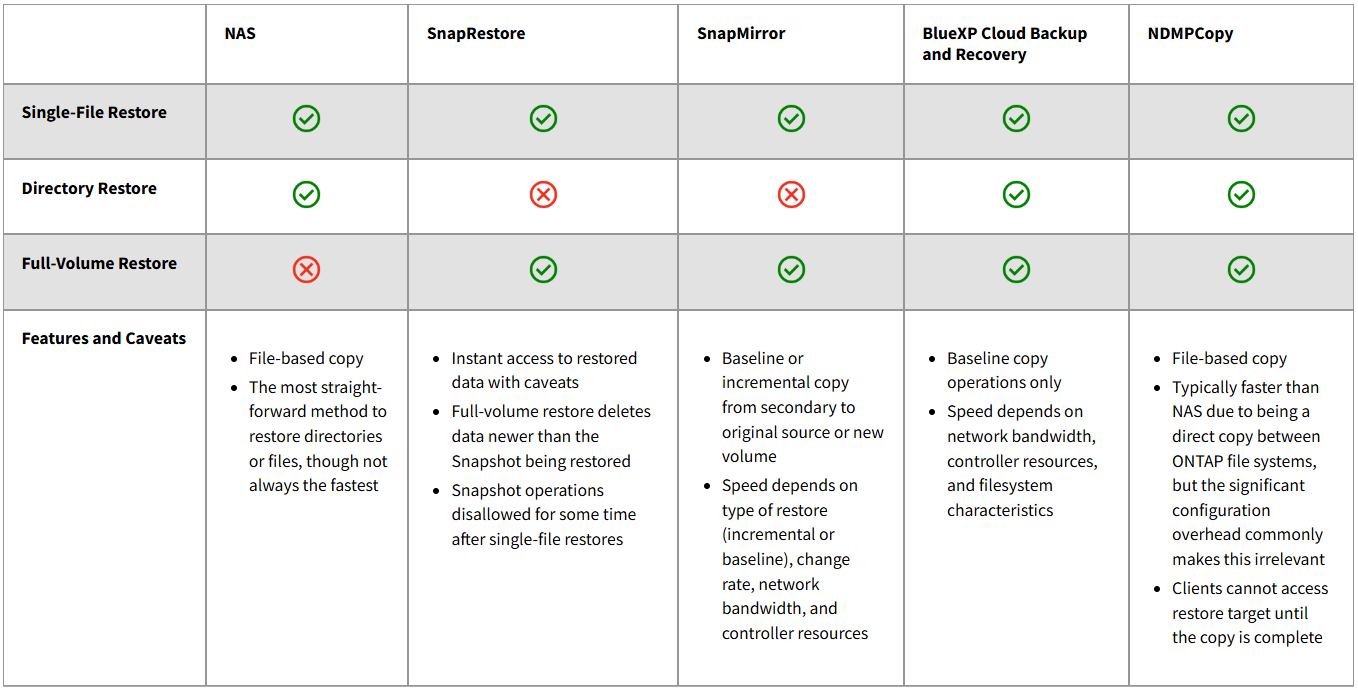
image.png